How can I use AI writing?
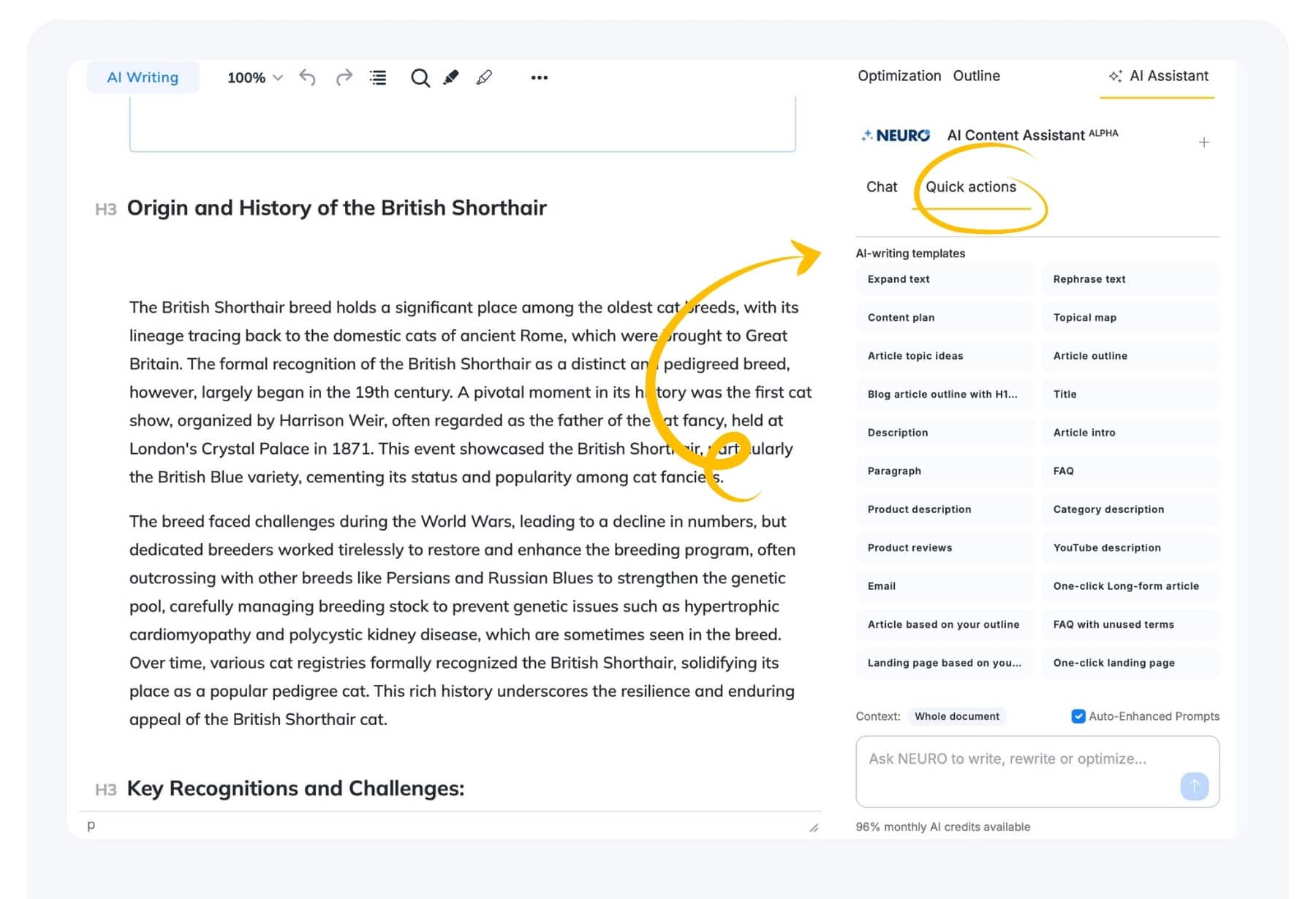
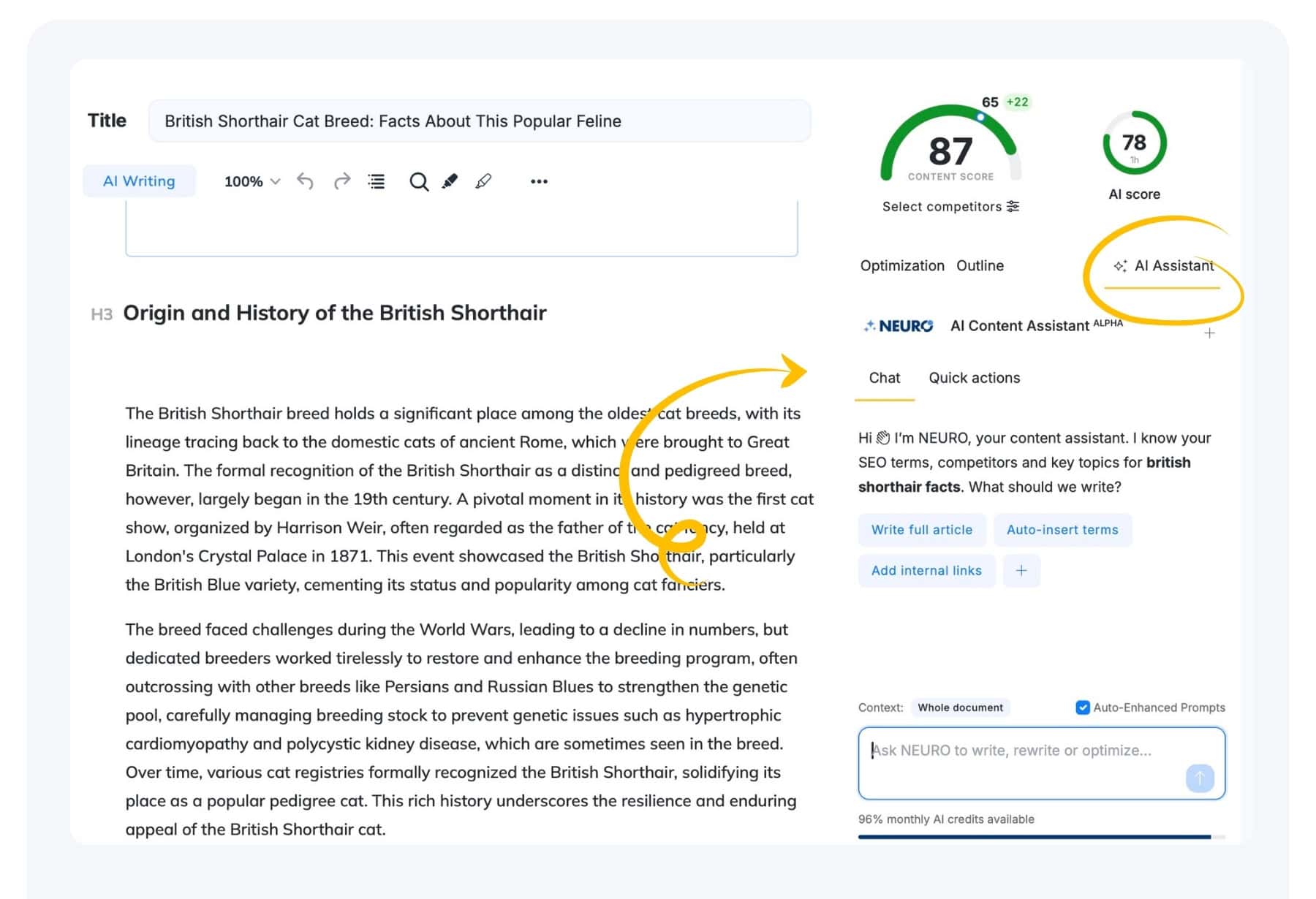
To get started with the AI Writing section, simply select AI Writing Assistant from the Content Editor sidebar on the right-hand side.
This will open the AI writing tools, allowing you to create, improve, and optimize your content with AI assistance.
1. AI Assistant Chat
The AI Assistant Chat is your go-to tool whenever you need help creating or improving your content. Simply chat with the AI assistant and describe what you want to achieve using your own instructions. The AI assistant understands your requests and follows your instructions to help you rewrite paragraphs, summarize information, expand existing sections, add new content, or make any other changes you need. Just tell it what you want in a natural, conversational way, and it will help you get the results you’re looking for quickly and easily.
2. Quick actions section that provides several tools to help you create and enrich your content.
Write full-length article – Content Designer .
Perfect for creating full-length articles. It combines AI-powered writing capabilities with SEO and NLP recommendations, incorporating facts and information from your sources to help you produce high-quality, well-structured, and search-optimized content. It’s an excellent choice when you want professional results quickly.
Ideas.
Ideal for adding useful elements that make your content more engaging and comprehensive. You can quickly generate additional content components, such as:
Calls to Action (CTAs)
Checklists
Definitions
Pros and Cons
Frequently Asked Questions (FAQ)
Key benefits
- Common mistakes
AI Templates and Custom AI Templates.
Best for users who prefer working with ready-to-use AI templates. Choose from available templates and AI models, including options powered by Claude, OpenAI, and other leading LLM providers, to find the approach that best suits your content needs.
Can I write full article with Content Designer?
Yes, Content Designer serves for writing long-form articles. It includes 4 adjustable steps:
Content Brief – where you define the type of article, article length, tone of voice, and data from AI Profile
Outline – where you get a generated outline with the possibility to modify it using Smart Headings, Competitors’ headings, and Questions from PAA
Facts – Adding your sources from which you want AI to insert facts: from URLs, files, or plain text
Article Content – the final step with full article creation that you can paste into the Content Editor.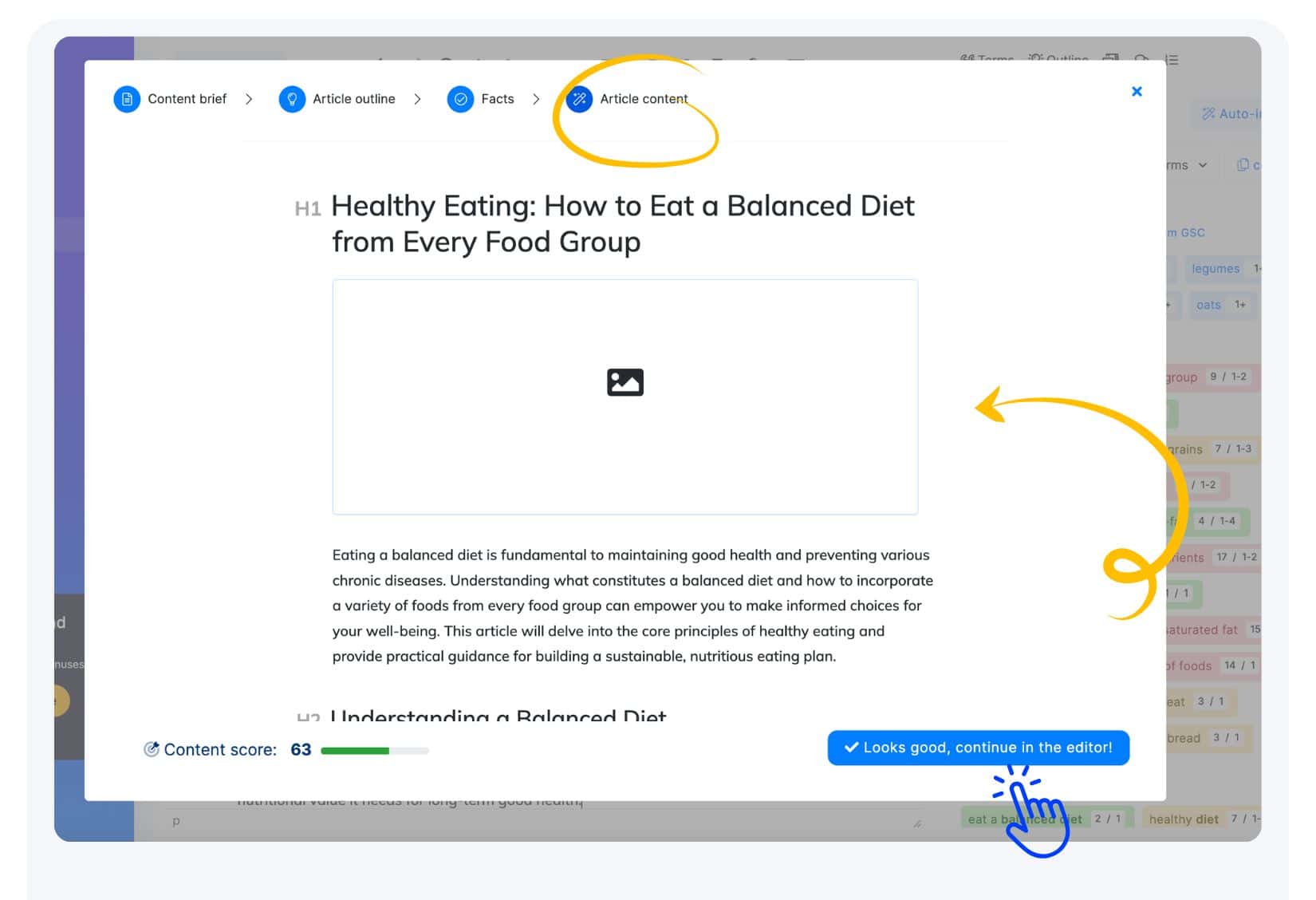
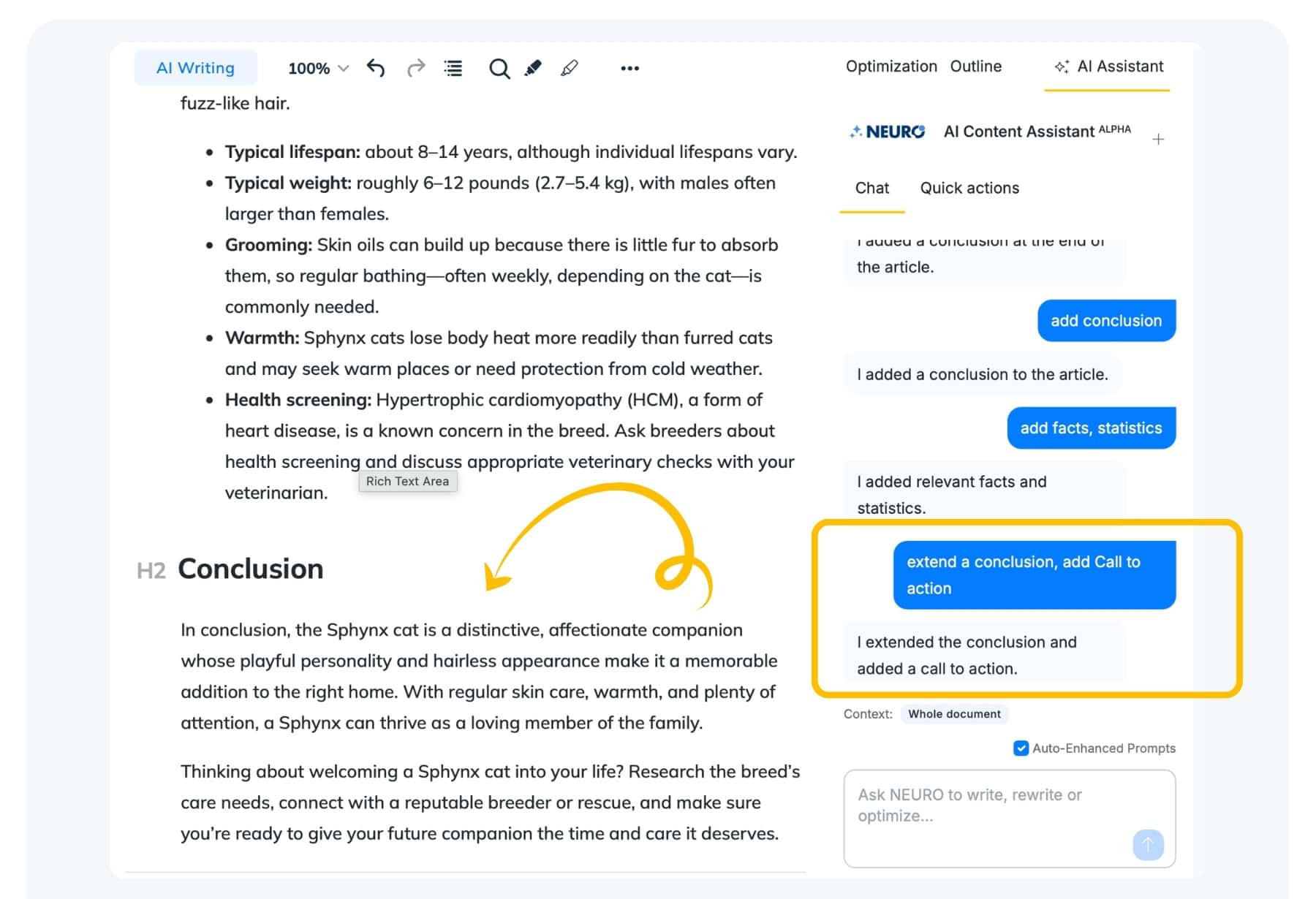
NEURO AI Assistant Chat
Simple. Powerful. Intuitive. Just give NEURO a one-line prompt through natural conversation and watch it work. Whether you need to write, transform, summarize, or format – NEURO adapts to your exact instructions.
- Create fresh, original content from scratch
- Rephrase and improve existing text
- Summarize long-form content instantly
- Expand ideas into detailed sections
- Format content to match your style
- And much more elements based on what you instruct it to do.
AI Templates
To access AI templates simply select the AI Templates option in the Quck action section in the AI Assistant, and you’ll be able to access and use any of the available AI templates.
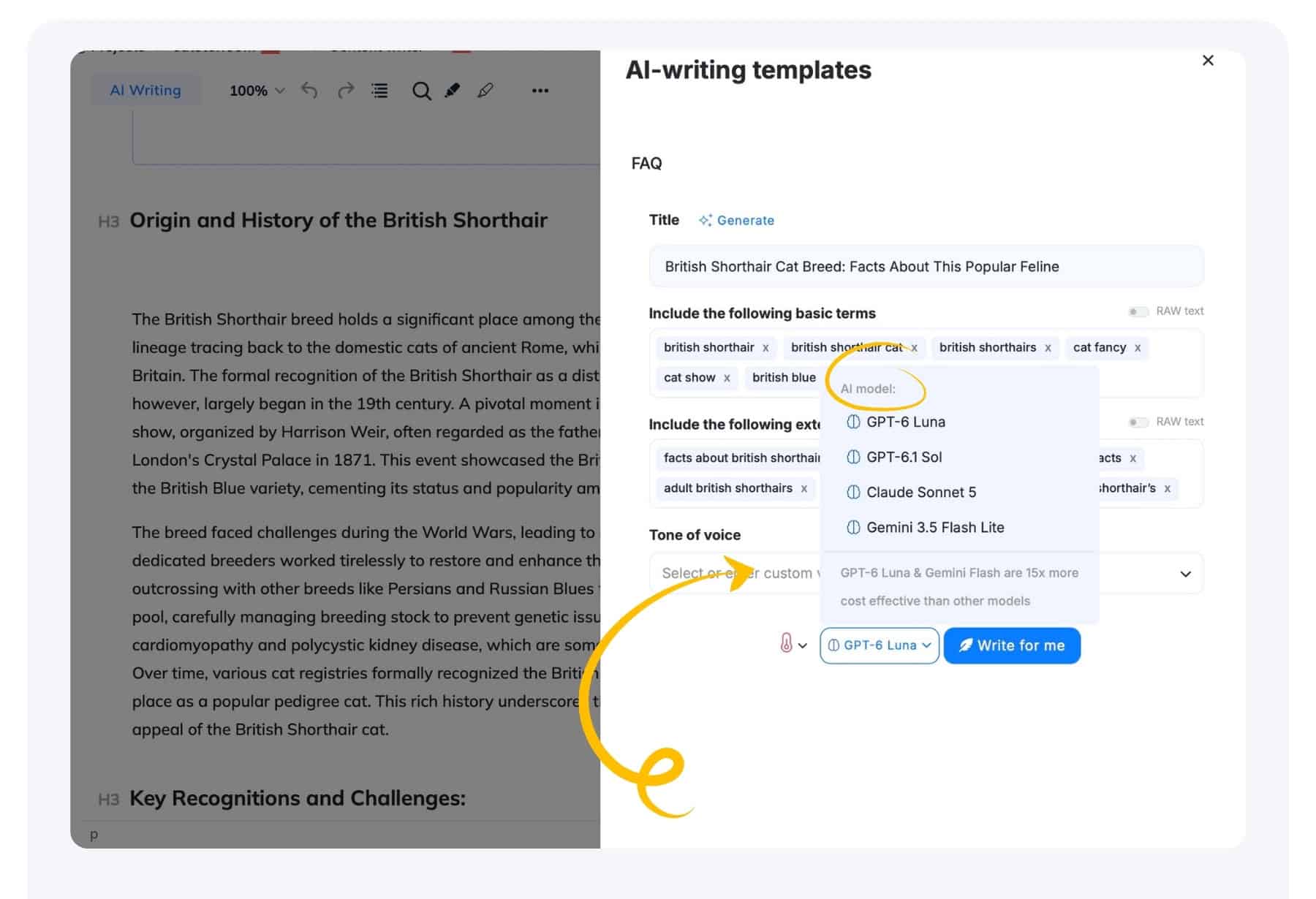
In the AI Templates you can select a model AI for text generation.
NEURONwriter currently leverages the latest AI models that are available on market like GPT models, Gemini and Claude Sonnet:
- GPT 6 Luna
- GPT-6.1- Sol
- Claude Sonnet 5
- Gemini 3.5 Flash Lite
There is some examples of AI Templates you can find there:
Title
Paragraph
Product description
One click long form Article
Outline
Article based on your outline
FAQ with unused terms