What is the NEURONwriter MCP Server?
The NEURONwriter MCP Server enables AI assistants and compatible applications to connect directly with your NEURONwriter account through the Model Context Protocol (MCP).
Using MCP, you can access selected NEURONwriter features from supported AI clients, making it easier to automate tasks and integrate NEURONwriter into your AI-powered workflows.
Where can I find the NEURONwriter MCP Server settings?
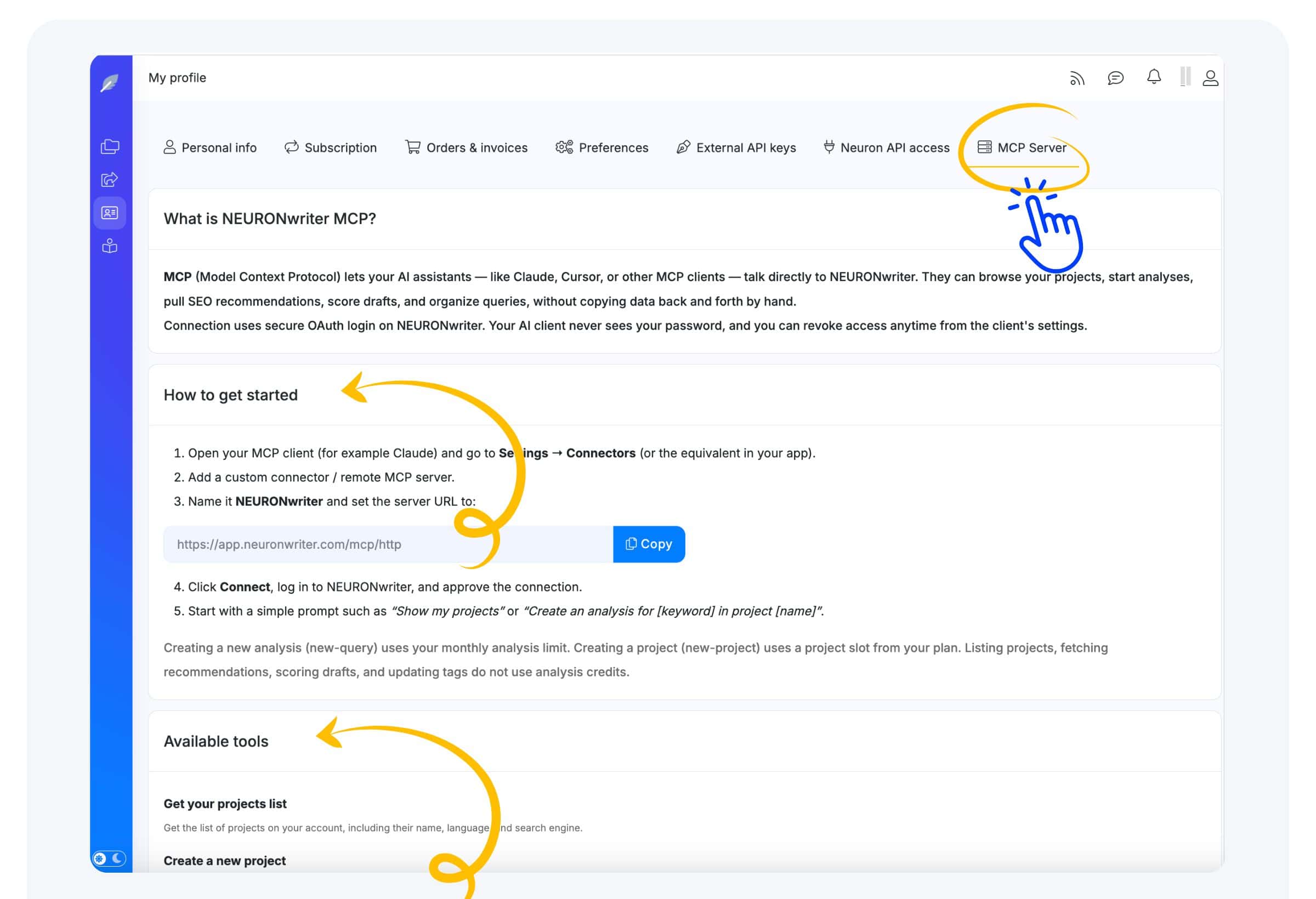
You can access the MCP Server from your Profile.
Simply log in to your NEURONwriter account, open Profile → MCP Server, where you’ll find everything you need to get started.
Which AI clients support the NEURONwriter MCP Server?
The NEURONwriter MCP Server works with AI applications that support the Model Context Protocol (MCP). Please refer to your AI client’s documentation to verify MCP compatibility.
How to start with the NEURONwriter MCP Server?
Before using the MCP Server, you’ll need to configure your preferred MCP-compatible AI client by following the instructions available in Profile → MCP Server.
Once configured, your AI client can securely connect to your NEURONwriter account and use the available MCP tools.
Getting started only takes a few minutes:
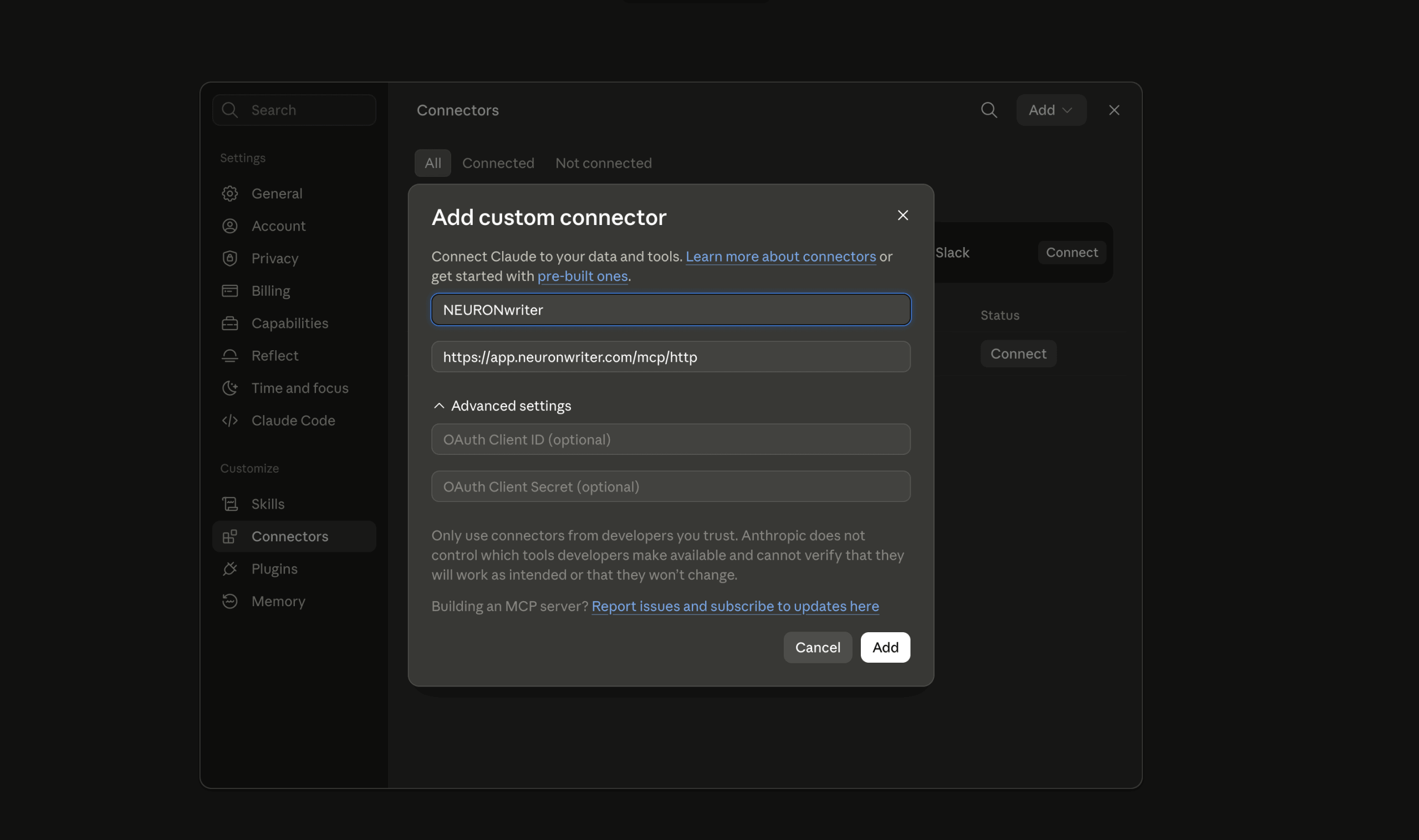
- Open your MCP-compatible AI client (for example, Claude) and navigate to Settings → Connectors (or the equivalent section in your application).
- Add a Custom Connector or Remote MCP Server.
Name the connection NEURONwriter and use the following server URL:
https://app.neuronwriter.com/mcp/http- Click Connect, sign in to your NEURONwriter account, and authorize the connection.
- Once connected, you can start interacting with your account using prompts such as:
- “Show my projects.”
- “Create an analysis for ‘best AI SEO tools’ in the Marketing project.”
Available tools
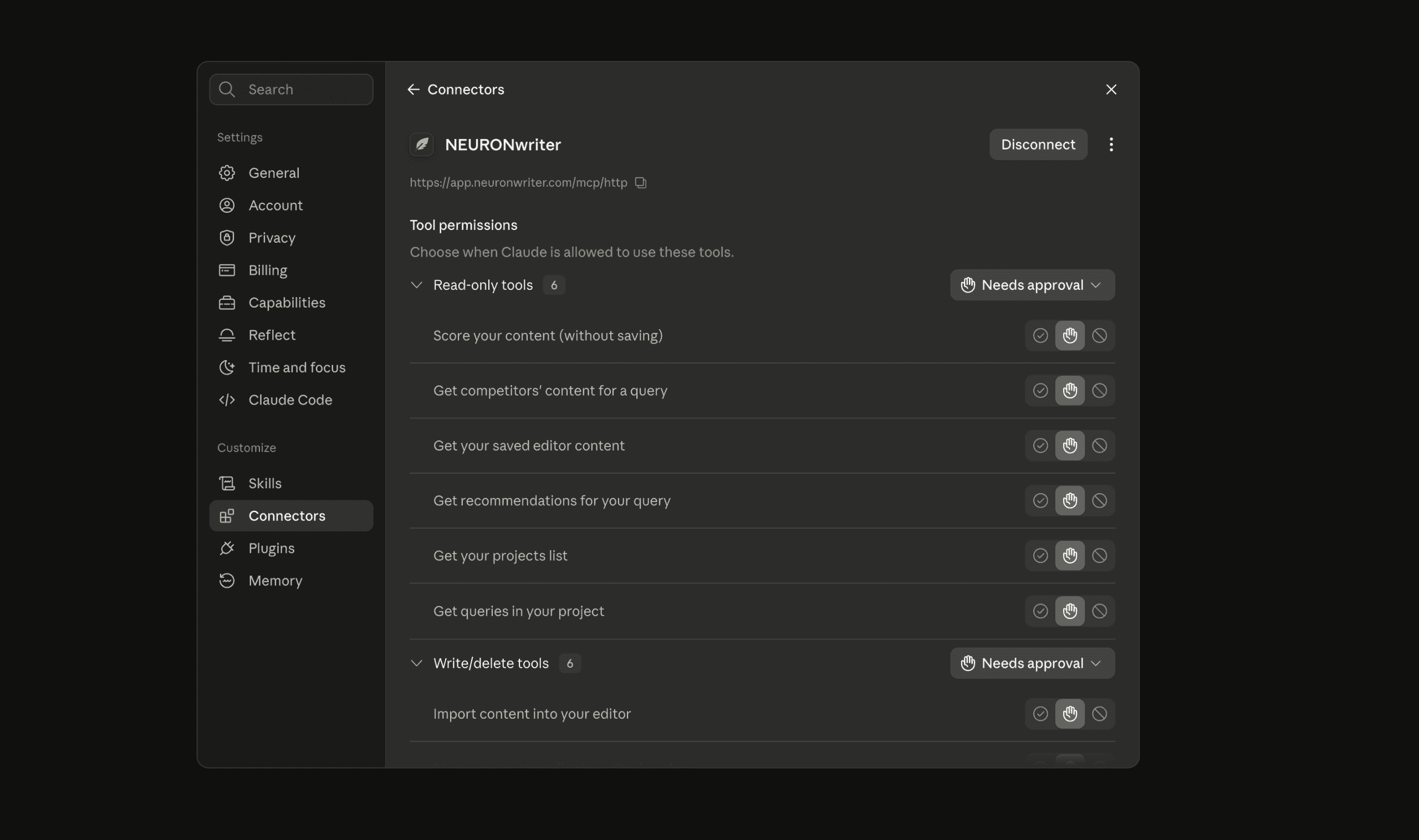
- Get your projects listGet the list of projects on your account, including their name, language, and search engine.
- Create a new projectCreate a new project on your account. Provide either a non-domain project name, or a website domain and/or homepage URL (if only one of domain/homepage is given, the other is derived). Uses one project slot from your plan limit; does not use your monthly analysis credits.
- Get queries in your projectGet the list of queries in one of your projects. You can filter by status, tags, or how they were created.
- Create a new content queryStart a new Content Writer analysis for a keyword in one of your projects. Uses one analysis from your monthly limit, just like creating a query in the app. If a query with the same keyword and targeting was created in the last 30 minutes, returns that existing query instead; pass force=1 to create another one anyway.
- Get recommendations for your queryCheck whether your query is ready and get content recommendations, suggested terms, questions, and competitor insights. Does not use your monthly analysis limit.
- Get competitors’ content for a queryRetrieve the content of competitor pages analyzed for your query.
- Get your saved editor contentRetrieve the latest content revision saved in the editor for your query, including title, meta description, and HTML.
- Import content into your editorUpdate the editor content for your query by importing HTML or a URL. Saves a new content revision in your query.
- Score your content (without saving)Check how well your HTML content scores against your query recommendations, without saving a new revision.
- Mark your content (in the editor) as doneMark a query as finished in your project inventory.
- Remove the done mark from your queryRemove the finished status from a query in your project inventory.
- Update tags on your queryChange the tags assigned to one of your queries.
Does using MCP consume my plan limits?
Some MCP actions use the resources included in your NEURONwriter plan:
- Create Analysis (
create-a-new-content-query) – uses one analysis credit from your plan. - Create Project (
create-a-new-project) – uses one available project slot.