PDF SEO: How to Optimize PDF Files for Search
Semantic Summary
Idea: A PDF can appear in search, but a well-made document and a useful HTML page often work better together than a PDF alone.
Challenge: Scanned text, vague file details, poor mobile reading, and competing PDF and HTML versions can make a good resource hard to find or use.
Summary: Keep a PDF when people need a downloadable or printable file. Make its text searchable, title and structure clear, link to it from a relevant page, and choose deliberately which version should appear in search.
Related Reads: Technical SEO for Beginners · SEO-Friendly URLs · Canonical Tags for SEO · 301 Redirects for SEO · Content Verification Pre-Publish Audit
SEO for PDF files is not a trick for making a document rank. It is the work of making a useful PDF understandable, reachable, and clear about its relationship to your website. Google lists PDF among the file types it can index, but indexing is not guaranteed and does not promise a ranking.
Can PDFs appear in search results?
Yes. Google can index text in PDF files and may show a PDF as a search result. A PDF still needs to be crawlable, contain text that can be extracted, and satisfy a searcher’s need; no filename, metadata field, or optimization checklist guarantees that it will be indexed or rank.
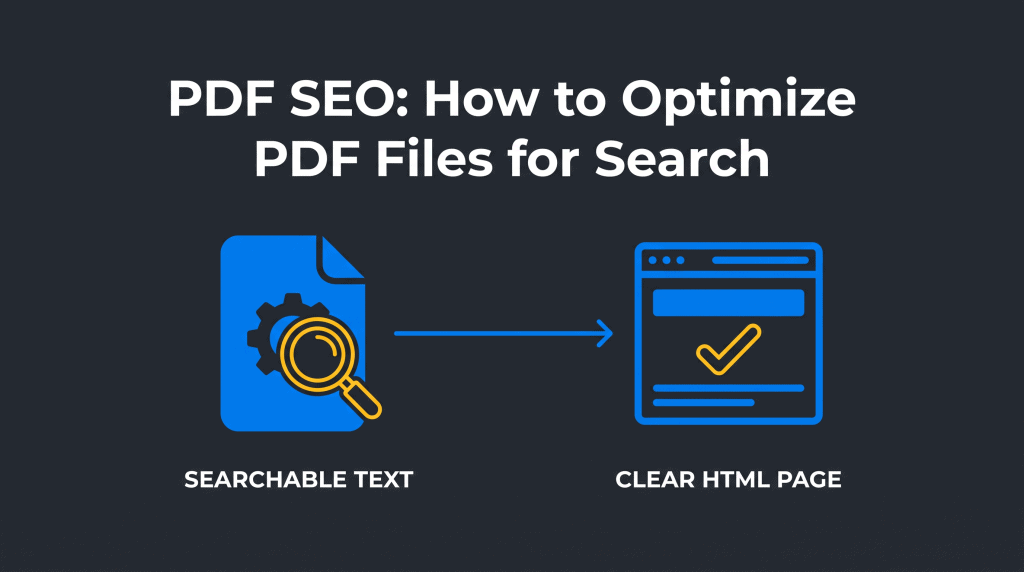
Start by checking that the file is publicly accessible and returns a successful response. If the PDF is an image-only scan, search systems may not be able to read its words. Run optical character recognition (OCR) to add a searchable text layer, then test whether you can select and copy a sentence from the document.
PDFs can be useful for reports, forms, manuals, print-ready guides, and resources people need to save. They are less convenient when the reader needs a quick answer, accessible navigation, frequent updates, or a page that fits naturally into the rest of the website.
PDF or HTML: which format should you choose?
Choose the format that best serves the reader’s task. Use an HTML page as the main version when the content is meant to be read on screen, updated often, or connected to other pages. Use PDFs when preserving a fixed layout, printing, or downloading is a real user need; PDFs for search can still be useful when readers need a document.
| Use case | Better starting point | Why |
| A short answer, service detail, or frequently updated guidance | HTML page | It is easier to scan, update, navigate, and link to related content. |
| A form, printable checklist, signed document, or fixed-layout report | The downloadable file preserves a stable document format. | |
| An important report people may want to read online or download | HTML page plus PDF | The page can summarize the resource and provide context; the PDF offers a download. |
If both versions contain nearly the same material, decide which URL should be the main search result. Google supports an HTTP Link response header with rel=”canonical” for non-HTML files such as PDFs. This is a technical implementation choice: ask the person who manages your server or CMS to confirm the header is set correctly. Do not assume that adding a canonical tag inside a PDF works like adding one to an HTML page.
How to optimize a PDF for search
Make the document easy to read for people and easy to interpret for machines. These PDF SEO best practices improve clarity and access; they do not guarantee a specific search result or SEO ranking.
Make the text searchable and selectable
Use real text rather than pages saved only as pictures. If you must publish a scan, apply OCR and review the output for misspelled words, broken reading order, and missing characters. A PDF reader should let a person select the text and search within the document.
Keep the content focused on one useful topic. A searchable document with a clear purpose is more helpful than a large file containing unrelated material. If the core answer fits better on a normal web page, publish it in HTML and offer the PDF as an optional download. This is often preferable for content marketing resources that need frequent updates or interaction.
Set a clear title, description, language, and filename
Before publishing your PDF, open its document properties and check the title, subject or description, author where relevant, and language. These PDF metadata fields are different from the title tag and meta description on an HTML page.
Give the file a descriptive name that tells a person what it contains. For example, annual-water-quality-report-2026.pdf is clearer than final-v7-new.pdf. When creating the PDF, set both a readable file name and a document title; neither is the same as a web page title tag.
Use plain language and a natural keyword phrase that matches the document. Do not repeat keywords or make the PDF title more dramatic than the contents. Rename your file with words that describe its subject, separated by hyphens. A clear file name can help people recognize and share a document, but it is not a substitute for useful content or a descriptive link on your site.
Use headings, links, and a readable structure
Build the PDF with real heading styles and a logical reading order, not just large bold text. Add bookmarks to long documents, meaningful link text, and a table of contents when it helps readers move through the file. These choices make the PDF easier to scan and navigate, including for people using assistive technology.
Check that links inside the PDF work and explain where they go. A link labelled “visit our site” is less useful than one that names the relevant page.
A searchable PDF file should also include links within PDFs where readers may need a source, a related resource, or the main website. If the document is a report, include its publication date and responsible organization so readers can judge its context.
Make the file useful on mobile and accessible
Test the PDF format on a phone as well as a desktop. A user-friendly document should be readable without constant zooming. Look for text that requires constant zooming, tables that run off the page, low contrast, and pages that are difficult to navigate. A downloadable PDF can preserve a print layout, but the HTML summary should still carry the key information for readers who prefer a web page.
Use descriptive headings, meaningful link text, sufficient contrast, and a sensible reading order. These steps improve user experience (UX), including for readers using assistive technology. If the document is important to a broad audience, ask someone familiar with accessibility to check its tags and keyboard or screen-reader behavior. Do not claim formal accessibility compliance without a proper review.
PDF SEO best practices: a pre-publish checklist
Before publishing your PDF, run this short check. It covers the parts of PDF search optimization that a site owner can verify without promising assured high rankings in search.
- Confirm the search intent. Does a searcher need a downloadable document, or would a fast HTML answer be more useful?
- Check indexation basics. Confirm the PDF URL loads without a login, the server returns the intended file, and the page is not unintentionally blocked from crawling or indexing.
- Test the text. Select a sentence, copy it, and search within the PDF. If it is a scan, run OCR and check the output.
- Review the document details. Set a useful title, subject, language, and a readable file name. Use hyphens between words.
- Inspect the structure. Check headings, reading order, bookmarks, links, and whether a long document is easy to navigate in a PDF reader.
- Connect it to the main website. Add a contextual link to the PDF from a relevant HTML page, with anchor text that tells people what they will download. Links to your PDF should make the destination clear; this is useful internal linking, not a promise of a ranking effect.
- Choose the search version. If an HTML page repeats the PDF, decide which one should be canonical and ask an administrator to configure and test the correct signal.
For example, a research team publishing an annual report can create an HTML page with a short plain-language summary, date, key findings, and a clear download link. The PDF remains useful for printing and sharing; the HTML page gives searchers a quick, user-friendly introduction and a stable place to learn about the report. This example describes a sensible format choice, not a ranking case study or promised outcome.
Connect the PDF to your website
Link to an important PDF from a relevant HTML page so readers can understand what the file is before they download it. The page can state who the document is for, what it covers, when it was published, and whether a newer version exists. Use descriptive anchor text such as “Download the 2026 water quality report” rather than “click here.”
When a PDF itself is the main resource, give it a stable URL and use internal linking from appropriate pages. Links to your PDF should explain the value of the download; anchor text links in PDFs should likewise describe their destinations.
Other sites may create backlinks to an original report, but do not treat backlinks as guaranteed or as a substitute for a useful resource. Also include links inside the document back to useful web pages where readers can continue. Keep the link between the main website and the downloadable PDF obvious, rather than treating the file as a dead end.
For guidance on choosing a readable address, see SEO-friendly URLs. For general crawlability and site access, see the technical SEO guide.
Manage duplicate and updated versions
If an HTML page and a PDF repeat the same content, choose which version you want searchers to find and keep that choice consistent. For example, an HTML page may be the canonical version, while the PDF is offered as a download. Google documents the use of an HTTP canonical response header for PDFs and other non-HTML files.
When a report is replaced, decide whether to update the existing PDF URL, keep the older edition as an archive, or retire it. Label old editions clearly and link to the current version. If you remove a PDF permanently, use a relevant replacement or a suitable permanent redirect rather than sending every old address to the homepage.
Keep the title, date, version number, and landing-page description aligned. This reduces confusion for readers who find an old link or download a copy to share with someone else.
Measure whether a PDF is useful
Measure outcomes that match the role of the PDF. In Google Search Console, review whether the PDF URL receives impressions and clicks in search. In Google Analytics or another analytics setup, measure visits to its HTML landing page and, if download tracking is configured, completed downloads. A download shows that someone requested the file; it does not prove they read it or found it useful.
Use the results to ask practical questions: are people finding the right version, do they reach the PDF from the expected page, and does the HTML summary answer the quick questions without requiring a download?
A few relevant backlinks may help readers discover an original research PDF, but backlinks will continue to be only one possible signal among many, not a guarantee of visibility. Search engine results can send visitors to either the PDF page or its HTML landing page, so review each URL separately.
Compare over a consistent period and note other changes that may affect traffic. If a SERP (search engine results page) shows the PDF or its HTML page, compare impressions, clicks, and the destination URL rather than treating position alone as success. Do not attribute every change in search visibility to a PDF edit.
How NEURONwriter helps with the HTML content around a PDF
NEURONwriter can help plan and connect the supporting HTML content, but it does not directly edit PDF document properties, add OCR, validate PDF accessibility, or configure server response headers. Use it for the web content around the file, and handle the PDF itself in your document and publishing workflow.
- Content Designer can help structure a supporting article or landing-page draft, including headings and metadata, which you can review before publishing. It is a content-planning and writing feature, not a PDF editor or site builder. See Content Designer.
- Auto-Insert Internal Links can suggest links to relevant pages in your domain within editor content. Review and approve the suggestions so the landing page provides a useful path to the PDF and related resources. It does not create a technical link header or check links inside the PDF. See how Auto-Insert Internal Links works.
- Content verification can support a pre-publish check of the surrounding article. Use it to review factual claims and page readiness, while separately testing the PDF file, its properties, and its accessibility. Read the content verification audit.
FAQ
Can Google index PDF files?
Yes. Google lists PDF as an indexable file type and can process text in PDFs. That does not mean every file will be indexed or appear for a particular search.
Are PDFs bad for SEO?
No, not automatically. A PDF can be useful when people need a printable or downloadable document. An HTML page is often easier to read, update, navigate, and connect to other website content. The right choice depends on search intent and user experience, not on a blanket rule that every PDF is bad. The right choice depends on search intent and user experience, not on a blanket rule that every PDF is bad.
How do I make a scanned PDF searchable?
Use optical character recognition to add a text layer, then review the result. Test by selecting a sentence and searching for a word inside the document.
Should I make an HTML page for every PDF?
Not necessarily. Create an HTML page when it adds useful context, answers a quick question, or gives readers a better way to access an important resource. A minor form or printable file may only need a clear link from a relevant page.
Can I have both an HTML page and a PDF with the same content?
Yes, but decide which version should be the main search result. For a duplicate or very similar PDF and HTML page, Google supports a canonical HTTP response header for the non-HTML file; ask your site administrator to implement and verify it.
Does a PDF filename improve rankings?
A descriptive filename helps people understand a download and can provide useful context. It cannot guarantee indexing, rankings, or clicks, so treat it as a clarity practice rather than a ranking shortcut.
What should PDF metadata include?
At minimum, use a document-specific title and a clear subject or description. Set the language where the authoring workflow supports it, and keep the information consistent with the visible document and its landing page.
How can I track PDF traffic?
Check the PDF URL in Search Console for search impressions and clicks. You can also measure landing-page visits and configure analytics to record download events, but a download event does not show whether the person read the file.
Should I block a PDF in robots.txt if I do not want it indexed?
Robots.txt is not a dependable way to remove a URL from search, and it is not a canonicalization method. Use an appropriate index-control method for your case and verify it with the person responsible for your website. Do not block the file in robots.txt as a substitute for a deliberate indexing decision.
Can NEURONwriter optimize my PDF file?
No. NEURONwriter features can help plan supporting HTML content and suggest internal links in editor content. PDF OCR, document properties, accessibility checks, and server-level canonical headers need separate tools or site workflows.